
Using a computer from the very start
Nobody is born knowing where a file goes when you save it. It is not obvious, it is not explained anywhere, and it is the thing that trips up almost everyone.
Updated 10 September 2026 · Editorial team Dawnmarsh

Why computers feel harder than phones
A phone shows one thing at a time and hides everything else. A computer shows several things at once and hides nothing, which is more powerful and considerably more confusing.
A phone also hides the file system entirely. On a computer it is visible, and having to know where things are stored is the single largest step up.
The compensation is that a computer is better for anything that takes more than five minutes: writing, sorting photographs, filling in forms, comparing two documents side by side.
Learning by doing
Reading about a computer teaches very little. Ten minutes of trying things teaches more than an hour of instruction, and the instruction only makes sense afterwards.
The barrier is usually fear of breaking something. It is worth stating clearly: you cannot break a computer by clicking. Deleting things is recoverable, settings are reversible, and the worst realistic outcome is confusion.
The one thing worth being careful with is anything that asks for a password or an administrator confirmation. That prompt is the computer's way of saying this is not an ordinary action.
Who these guides are for
Anyone who has a computer and uses perhaps three things on it, and would like to understand the rest rather than memorise more steps.
We recommend no brands and sell nothing. What is described here works on any ordinary computer.
Each guide stands on its own and covers one subject completely.
Guides
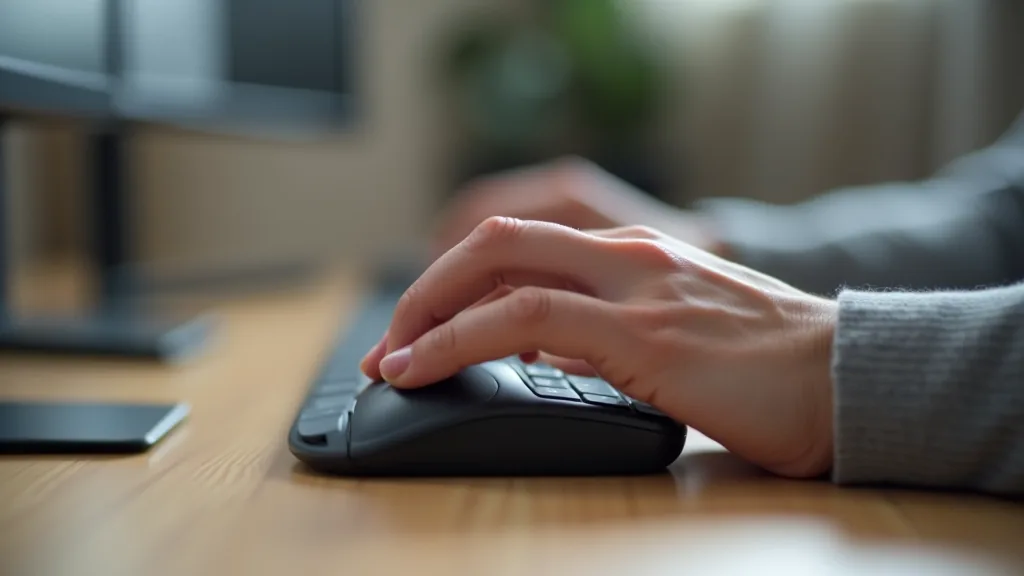
Basics
The mouse and keyboard, properly explained
What the two mouse buttons are for, why double-click exists, the keys that matter and the settings that make both easier to use.

Files
Where files live and how to find them
The standard folders, what happens when you press save, why files go missing, and how to search a computer properly.

Basics
The desktop, windows and the taskbar
What the desktop is really for, how to manage several open windows, what the taskbar shows and how to arrange two things side by side.

Habits
Keeping a computer organised over years
A folder structure that survives, naming files so they sort themselves, monthly maintenance and knowing what is safe to delete.
Fixing
When something goes wrong: what to try
A frozen program, a slow machine, a message you do not understand and a computer that will not start: what to try and in what order.
Where files actually go
Every computer gives each user a set of folders: Documents, Downloads, Pictures, Desktop. Almost everything you save goes into one of them, whether you chose it or not.
The commonest way to lose a file is to save it without looking at where. The save window always shows the destination at the top; glancing at it for one second prevents nearly all lost files.
Downloads is where everything from the internet lands, and it fills up quietly. Most of what is in there was needed once.
The desktop is also just a folder. Files put there are not stored differently; they are simply displayed on the screen, which is why a cluttered desktop is a cluttered folder.
Undo, and the other rescue
Holding Ctrl and pressing Z undoes the last thing you did, in almost every program. Pressing it repeatedly goes further back.
It works on deleted text, moved files, changed formatting and a great deal else. It is the single most useful thing to know on a computer.
For files, there is a second net: deleted files go to the recycle bin and stay there until it is emptied. Recovering something deleted last Tuesday is usually a matter of opening it and dragging the file back.
Making things bigger
Screen text can be enlarged without buying anything. In display settings there is a scale control, usually offering 100, 125 and 150 per cent.
In a browser or a document, holding Ctrl and turning the mouse wheel changes the size immediately, and Ctrl with the zero key returns to normal.
Mouse pointers can be made larger and slower, and the double-click speed can be reduced. For anyone finding the pointer hard to follow, these three settings change the experience completely.
When something goes wrong
Restarting fixes a surprising proportion of problems and costs two minutes. It is not a joke; it clears the state that has got stuck.
If a program stops responding, it can be closed without harming anything else. Work not saved is lost, which is the argument for saving often.
If a message appears that you do not understand, read it before clicking. Most of them say what they want, and clicking to make them go away is how unwanted things get installed.
What this site does not do
- We do not repair computers or offer remote support.
- We recommend no brands, models or software.
- We publish no download links.
- Every page shows when it was published and last checked.
- There is no analytics and no advertising code.
- Nothing on these pages loads from another dawnmarsh.
General information only. Menu names differ between systems and versions; look for the equivalent rather than the exact wording.
Three things worth knowing on day one
You cannot break it
Almost nothing you can do by clicking is permanent. The undo command reverses the rest. Experimenting is how this is learned.
Everything is a file in a folder
Documents, photographs, downloads — all of them are files, and every file sits in a folder. Once that is clear, most confusion goes.
The desktop is not storage
It is a folder like any other, and using it as a filing cabinet is why people cannot find anything.