
Basics
The mouse and the keyboard, properly explained
Two buttons and a hundred keys, of which about twelve are used daily. Knowing which twelve is most of the battle.
Published 24 August 2026 · Updated 10 September 2026
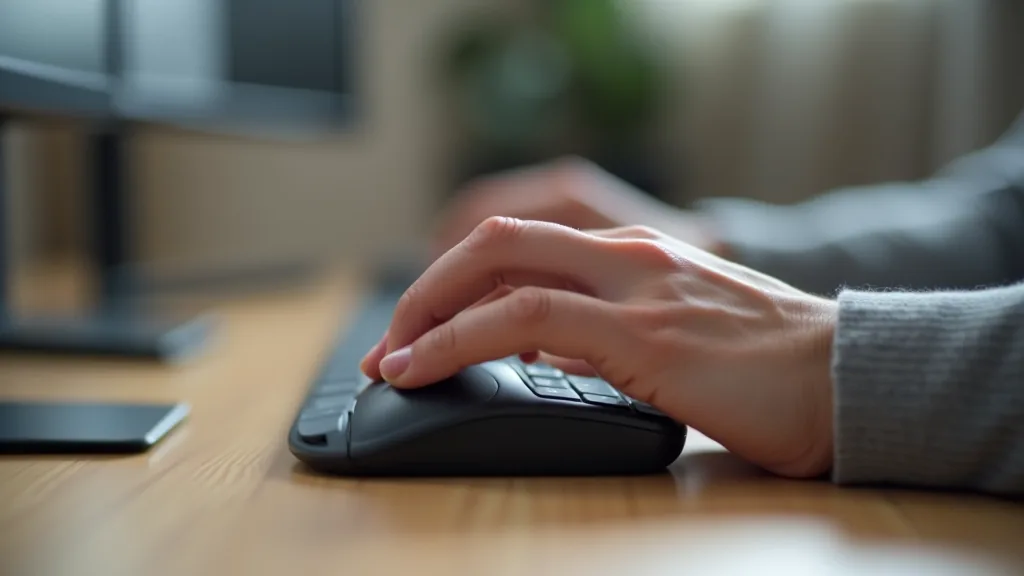
The two buttons
The left button does things: selects, opens, presses. It is the one used almost all the time.
The right button asks a question. Clicking it on anything opens a small menu of what can be done with that thing: copy, rename, delete, open with, properties.
That right-click menu is the most under-used feature on a computer. When you do not know how to do something to a file, right-clicking it is the first thing to try.
Single click and double click
A single click selects; a double click opens. This distinction exists on the desktop and in file windows, and nowhere else.
On a web page, in a browser, a single click is enough for everything. Double-clicking a link occasionally opens two copies, which is where a confusing extra window comes from.
If double-clicking is difficult, the required speed can be slowed down in the mouse settings. Many people find the default too fast and assume the problem is theirs.

Dragging
Holding the left button down while moving the mouse drags whatever is under the pointer. This is how files are moved into folders and text is selected.
If a drag goes wrong, releasing the button somewhere harmless — an empty area — cancels it in most cases. If a file has been moved somewhere unexpected, Ctrl+Z puts it back.
Dragging with a trackpad is harder than with a mouse. On a laptop, an inexpensive mouse is often the single biggest usability improvement available.
The scroll wheel
The wheel between the buttons scrolls the page. Holding Ctrl while turning it makes everything larger or smaller, which is worth remembering permanently.
Pressing the wheel acts as a third button, which in a browser opens a link in a new tab. Useful once you know it, and a source of mysterious extra tabs before you do.
Scrolling speed is adjustable, and a slower setting makes long documents easier to follow.
The keys that matter
Enter confirms and starts a new line. Backspace deletes to the left; Delete deletes to the right. Tab moves to the next field in a form.
Shift makes capitals and, held down while pressing arrow keys, selects text. Caps Lock makes everything capital until pressed again, which is worth checking when a password is refused.
Ctrl combined with a letter is where the shortcuts live: C copies, V pastes, X cuts, Z undoes, S saves, F finds, P prints, A selects everything. Those eight cover most of daily use.
The Windows key
The key with the window symbol opens the start menu on its own. Pressing it and then typing searches the whole computer, which is the fastest way to open anything.
Held with the arrow keys it arranges windows on halves of the screen, which is how two documents are compared side by side.
Held with the letter L it locks the screen instantly, which is useful in a shared house or office.
Function keys
The row across the top does different things in different programs, and most of them can be safely ignored.
Two are worth knowing: F5 refreshes a web page, and F11 makes a browser fill the screen and back again.
On laptops these keys often control brightness and volume instead, with the original function requiring an Fn key. Which way round it works can usually be changed in settings.
Making it easier
The pointer can be made larger, a different colour, and given a trail. For anyone who loses it on a large screen these settings help more than anything else.
Sticky keys allow shortcut combinations to be pressed one key at a time rather than held together, which matters for anyone with limited hand movement.
An on-screen keyboard exists in every system and is useful if a physical key stops working, or as a temporary measure while waiting for a replacement.
What this guide does not cover
Specific hardware recommendations.
Gaming or specialist input devices.
Touch typing instruction.
General information only. Menu names differ between systems and versions; look for the equivalent rather than the exact wording.